If you’re building mobile apps for Android and iOS, versioning is not just a number — it’s your release discipline.
Poor version management leads to:
- Rejected builds (Store publishing errors)
- Confusing release notes
- CI/CD issues
- Backend incompatibility problems
In this guide, we’ll break down a universal versioning strategy that works cleanly for both platforms.
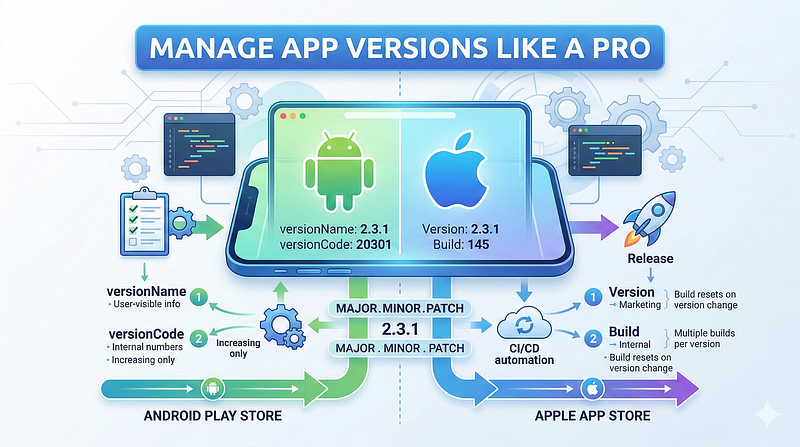
Why App Versioning Matters
App versioning helps you:
- Track releases clearly
- Communicate updates to users
- Maintain backward compatibility
- Support staged rollouts
- Manage CI/CD pipelines
- Prevent store rejection
If you’re publishing regularly, versioning discipline becomes critical.
The Universal Standard: Semantic Versioning
The industry-standard format is:
MAJOR.MINOR.PATCHExample:
2.5.1What Each Number Means
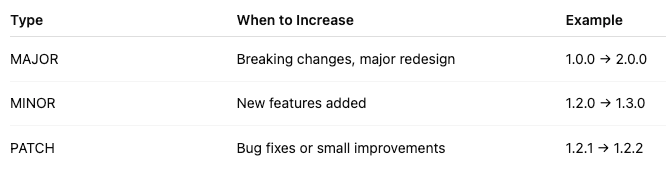
This format works perfectly across:
- Google Play Store
- Apple App Store
- Backend APIs
- DevOps pipelines
- Release documentation
Android Versioning Explained
Android requires two separate version values:
versionCode
versionName
1️⃣ versionName (User Visible)
This is what users see in the Play Store.
Example:
versionName "2.3.1"This should follow:
MAJOR.MINOR.PATCH2️⃣ versionCode (Internal Only)
- Must be an integer
- Must always increase
- Users never see this
- Google Play will reject duplicate or lower numbers
Clean Strategy
Convert the semantic version into a numeric format:
(MAJOR × 10000) + (MINOR × 100) + PATCHExample:
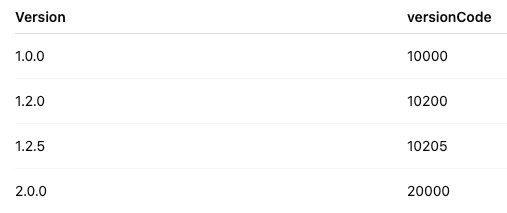
This keeps everything predictable and scalable.
iOS Versioning Explained
iOS uses:
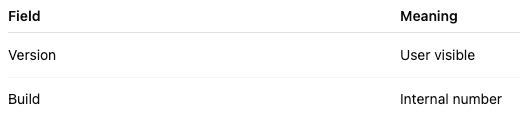
You configure these in Xcode under:
Version
Build
Example:
Version: 2.3.1
Build: 45
Important Rules
- Version must be numeric (e.g., 2.3.1)
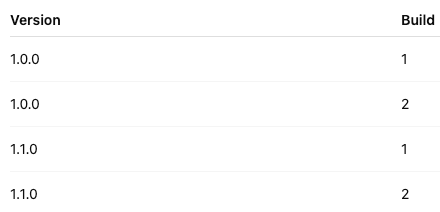
- Build must increase with every upload
- You can reset Build when the version changes
Example flow:
Universal Strategy That Works for Both
Here’s the cleanest rule:
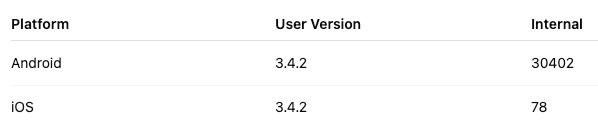
User Version
MAJOR.MINOR.PATCHInternal Version
Always increment an integer.
Example:
Pre-Release Versioning (Beta & RC)
For Android, you can use:
2.0.0-beta.1
2.0.0-rc.1
But iOS does not allow text in Version field.
So for iOS:
- Keep Version numeric
- Use the build number for beta tracking
- Manage beta via TestFlight
What NOT to Do
❌ Don’t use dates like:
2025.02.24❌ Don’t randomly jump versions:
1.0 → 1.7 → 3.0❌ Don’t reset Android versionCode
❌ Don’t mix inconsistent version patterns
Production-Ready Release Strategy
Start with:
1.0.0Then follow:
- Bug fix → 1.0.1
- Feature → 1.1.0
- Major update → 2.0.0
Keep it predictable. Keep it clean.
Why Are Android and iOS Build Versions Different?
Android and iOS builds are not the same because the stores enforce different internal versioning systems.
Let’s break it down clearly.
1️⃣ Android: versionCode = Identity of the APK/AAB
On Android, this field:
versionCode- Must be a single increasing integer
- Cannot ever go backward
- Google Play uses it to determine update order
- Two builds can’t have the same versionCode
Example:
versionName "1.2.5"
versionCode 10205
Google Play only cares about versionCode when deciding:
- Is this an update?
- Is it newer?
- Can users upgrade?
2️⃣ iOS: Version + Build Are Separate Concepts
On iOS, Apple separates things:
Example:
Version: 1.2.5
Build: 78
Apple allows:
- Same Version
- Multiple Builds under it
For example:
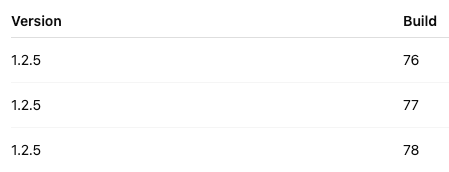
This is common during TestFlight testing.
3️⃣ Why They’re Not the Same
Because:
🔹 Android ties release identity to ONE number
🔹 iOS separates marketing version and technical build
They were designed independently by:
- Google Play system
- Apple App Store system
Different ecosystem, different philosophy.
4️⃣ Can You Make Them the Same?
Yes — but you must choose a strategy.
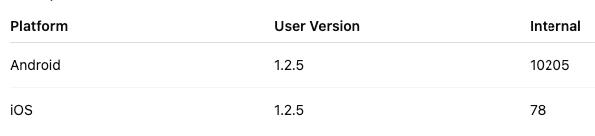
Option A (Most Common & Clean)
Keep:
- Same user version on both platforms
- Different internal build numbers
Example:
Option B (Make Everything Identical)
You can force both to use the same numeric build logic:
Example:

Android:
versionCode = 10205iOS:
Build = 10205This works fine technically.
But most teams don’t bother because:
- iOS build resets are common
- TestFlight creates many intermediate builds
5️⃣ Real Industry Practice
Most production teams do:
- Same marketing version on both platforms
- Independent build counters
Because:
- Android may need hotfix 10206
- iOS may need 3 TestFlight builds before approval
- Store review timelines differ
Keeping builds independent avoids release blockage.
6️⃣ What You Should Do (Professional Recommendation)
Since you’re publishing Android apps actively:
✅ Keep Version synchronized:
1.3.0✅ Let builds increment independently:
- Android → 10300
- iOS → 42
This gives:
- Clean release notes
- Clear product milestone tracking
- Flexible deployment
🎯 In short
Android build and iOS build are not the same because:
- Android uses a single increasing integer system
- iOS uses a marketing version + internal build counter
- The ecosystems were designed differently
But your user-visible version should always match across platforms.
Pro Tips for Professional Teams
1. Automate Build Numbers
Let CI/CD increment:
- Android versionCode
- iOS Build number
2. Maintain a CHANGELOG
Document:
- Added
- Fixed
- Changed
- Removed
3. Sync Backend & App Versions
If your API depends on the app version, enforce the minimum version from the backend.
4. Plan Version Milestones
Align version numbers with product roadmap phases.
Final Thoughts
Versioning is not just a technical requirement — it’s a communication system.
A disciplined versioning strategy:
- Makes your releases professional
- Prevents store rejection
- Helps QA and DevOps
- Builds trust with users
If you treat versioning seriously from day one, your app lifecycle becomes significantly easier to manage.

No comments:
Post a Comment